
Access to Nextcloud #
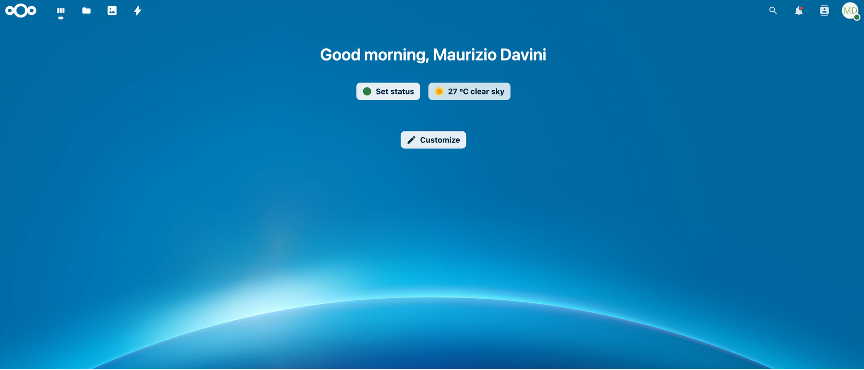
- Open the web browser and go to the address: https://u-drive.unipi.it
- Enter your institutional credentials (username and university password).
- Select “Login” to access your personal area.
Two-Factor Authentication (2FA) #
Nextcloud supports two-factor authentication (2FA) to enhance account security.
To configure 2FA:
- After logging in, select the profile icon in the upper right corner and choose “Settings”.
- Go to the “Security” section and locate “Two-Factor Authentication”.
- Select one of the available options (in use:
– TOTP authentication app, such as Google Authenticator or Authy). - Follow the instructions to associate the chosen method:
– For TOTP, scan the QR code with the app and enter the generated code. - Check that 2FA is active: on the next login, a code will be requested.
File Interface #
Once logged in, the list of folders and files is displayed. At the top of the interface, the following buttons are available:
- Upload
- New folder
- Share
- Settings
The sidebar navigation panel shows the folder structure.

Uploading Files #
To upload files or folders:
- Select the “Upload” button.
- Indicate whether you want to upload a file or a folder.
- Select the items from the computer in use.
- Wait for the upload to complete; the status is indicated by a progress bar.
File Download #
To download a file:
- Hover over the desired file.
- Select the context menu (icon with three dots).
- Click on “Download”.
You can download entire folders as a .zip archive.
Sharing Files and Folders #
To share an item:
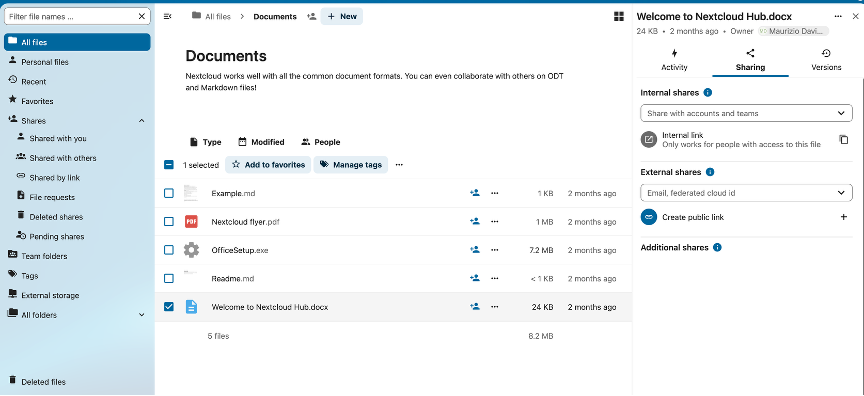
- Select the file or folder to share.
- Click the “Share” button.
- Enter the email address or username of the recipient.
- Define access permissions (read, write, share).
- Generate a public or private link, possibly protected by expiration and password.
File Versioning #
Nextcloud automatically saves previous versions of files.
To restore or delete a previous version:
- Select the desired file.
- Open the context menu (three dots icon) and choose “Details” > “Versions”.
- View, restore, or delete the available previous versions.
Comments and Annotations #
You can add comments on text files and images:
- Select the file.
- Menu > ‘Comments’.
- Write and send comments. Notifications will arrive via email.
Synchronization with the desktop client #
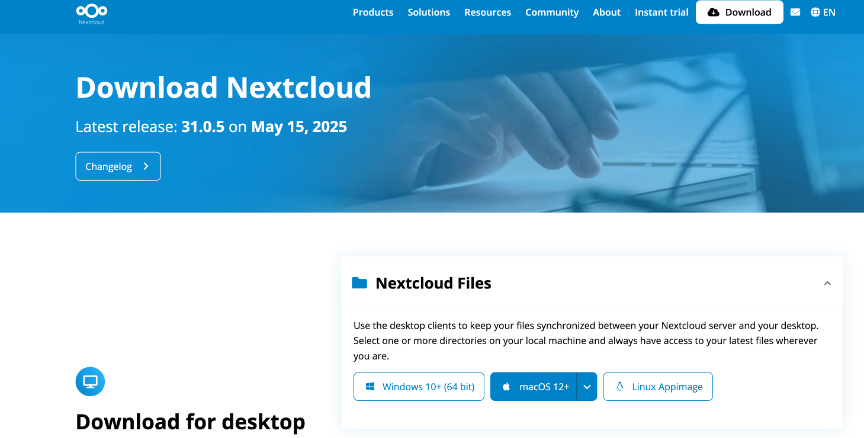
- Download the Nextcloud client from the official site: https://nextcloud.com/install/#desktop-files
- Install the software and configure it using the URL u-drive.unipi.it.
- Select the folders to synchronize.
- Files will be automatically synchronized to the local computer.
Folder management #
Creating, moving, and renaming folders:
- Create a new folder using the “New folder” button.
- Drag files to change their location.
- Use the context menu to rename or delete items.
Personal Settings #
Access the “Settings” section at the top right to manage:
- Your profile and password.
- Email notifications.
Tips and Best Practices #
- Use descriptive file names.
- Organize folders according to a hierarchical structure.
- Set expiration dates on sharing links.
- Keep the desktop client up to date.
Support and Resources #
For assistance, you can contact the University ICT support:
Email: storage-support@unipi.it
Official Documentation: https://docs.nextcloud.com