
You can use the office landline as an alternative method for two-factor authentication (2FA) to access the Microsoft 365 services of the University of Pisa.
In this case, during the login procedure, Microsoft makes an automatic call to the configured phone number: to complete the authentication, simply answer and press the “#” (hash) key on the phone device.
This method is useful for those who do not have a smartphone or cannot use mobile authentication apps.
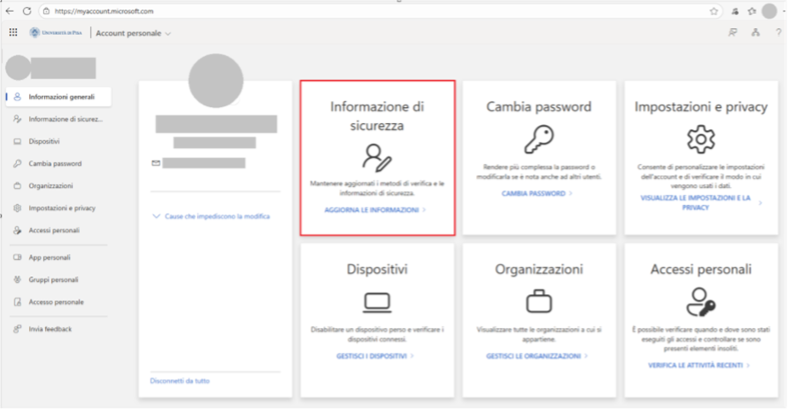
- Access the Personal Account section of Office 365 at the address: https://myaccount.microsoft.com/ (if prompted, proceed with authentication using university credentials).
- In the Security Information panel (highlighted in red in the image), click on Update information.
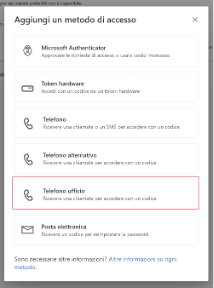
- Select the option Office Phone.
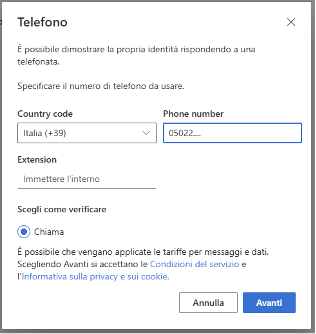
- In the following window, enter the Italian country code (+39) and in the Phone number field, enter the office phone number. Then click on Next.
- The activation procedure for the second factor concludes with a call from Microsoft to your phone number, which will ask you to press the pound key (#) on your phone. (Note: on Alcatel models, you must first press the * asterisk button before dialing #). Once the pound key is pressed, the procedure for activating the new authentication method is complete.

Access to services with phone authentication #
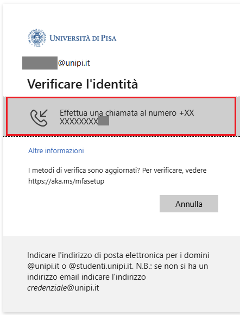
- To access services protected by authentication via landline, when the request window appears, select Make a call to the associated number.
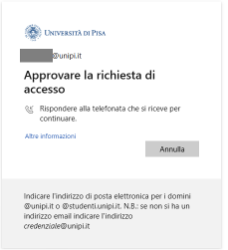
- A notification window will appear indicating the need to answer the call from Microsoft on the associated office phone.
After answering, to complete the authentication and access the portal protected by 2FA, press the pound (#) key on your physical or virtual phone.
Access Issues #
For any access issues or support with using two-factor authentication (2FA), you can contact the relevant IT center.