The 2fast – Two Factor Authenticator (TOTP) application allows generating temporary verification codes for multi-factor authentication (MFA) to access the Microsoft 365 services of the University of Pisa.
It can be installed on Windows computers as an alternative to authentication apps for smartphones (Microsoft Authenticator or Google Authenticator), providing a useful solution in case the mobile device is unavailable.Installation and Configuration #
The following procedure describes how to install and configure 2fast on your Windows PC to generate the TOTP codes necessary for secure access to Microsoft services.
Note: for security reasons, the 2fast app does not allow the capture of screenshots during certain installation phases. The instructions are therefore primarily presented in text format.
- From Windows, connect to the Microsoft Store and search for 2fast.
- On the application page for 2fast – Two Factor Authenticator, click on Get.
- After a brief wait for the download and installation of the application, press Open and on the next screen, the button Skip.
- Then choose Create a new data file (first launch) and on the next screen, select Choose local path to create the file locally that will contain, in an encrypted form, the accounts stored and used by the app.
- Then select the storage path for the data file on your PC: choose the folder where you want to save the file, for example Documents, and click on Select folder.
- In the next window (New data file), write the name of the file where the data will be saved (example: 2fast-data), choose and enter the protection password (to be repeated twice for confirmation) and finally click on Create a data file. The chosen password will be the one required for access to the 2fast app.
- On the next page (Accounts), click the + Add account button to create a new account. In the tab that opens (Entry type), select the mode for importing the secret key (private key). Choose the Manual entry option.
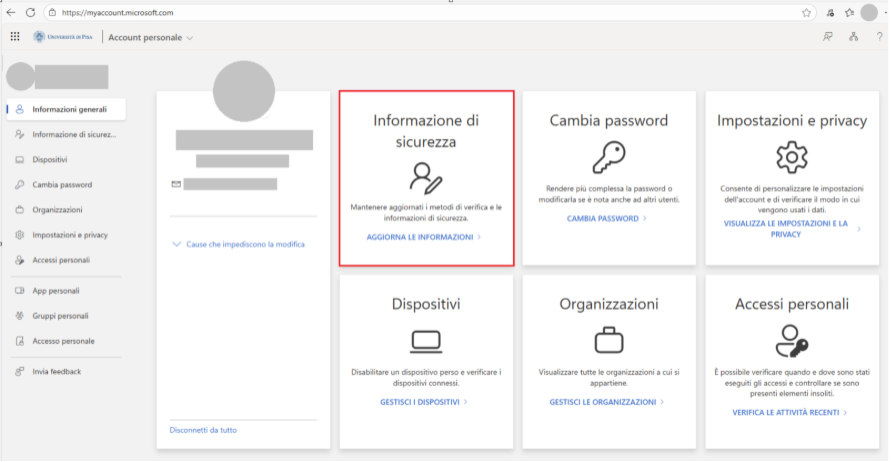
Before completing the installation of 2fast Authenticator, some preliminary steps on Office 365 need to be taken:- Go to the “personal account” section of Office 365 at the address: https://myaccount.microsoft.com/ (if prompted, proceed with the usual authentication).
- In the Security information panel (highlighted in red in the image), click Update your information.
- Select + Add sign-in method. Choose Microsoft Authenticator and then click the link I want to use a different authentication app.
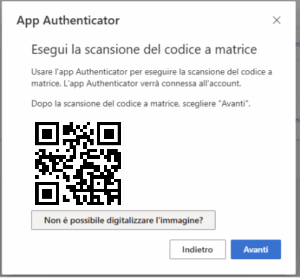
- In the Set up your account window, press Next and then click on Can’t scan the image?
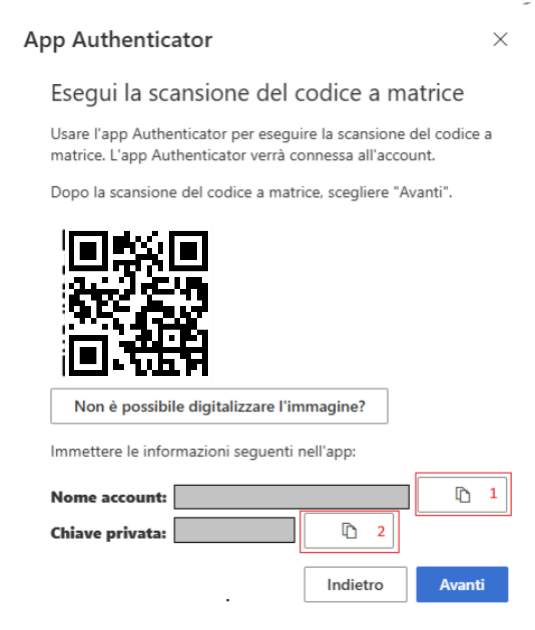
- To connect Office 365 and 2fast authenticator, you need to enter the strings related to “Account Name” and “Private Key” provided in the window shown in figure 4 (the strings are obscured by gray rectangles) into two specific fields in the 2fast app.
- Returning to the 2fast app, copy the string Account Name into the Label field and the string Private Key into the secret key field, enter your email where indicated, and then press Create an account. To avoid errors, it is suggested to copy the strings Account Name and Private Key using the designated copy icons highlighted with the numbers 1 and 2 in red (image point 12). At this point, the new account/link just created will be available in the 2fast app.
- To complete the procedure on Office365, you finally need to press the Next button in the window shown in the image of point 12, and in the window that appears next, enter the six-digit code displayed in the 2fast app (a code that renews every 30 seconds). By pressing next again, the procedure for activating the second factor of authentication is completed.
To access a site protected with MFA via the 2fast app, simply open the app and, for the specific authentication profile, enter the 6-digit code when prompted by the portal you wish to access.
Access Issues #
For any access issues or support with using two-factor authentication (2FA), you can contact the relevant IT support center.