
The application Tofu – Two Factor Authenticator (TOTP) allows you to generate temporary verification codes for multi-factor authentication (MFA) to the Microsoft 365 services of the University of Pisa.
It is a solution compatible with macOS computers and can be used as an alternative to mobile apps (Microsoft Authenticator or Google Authenticator) for secure access even without a smartphone.
Installation and Configuration #
The following procedure describes how to install and configure Tofu on Mac for generating the TOTP codes necessary for accessing Microsoft services.
- Connect to the website https://tofuauth.com/
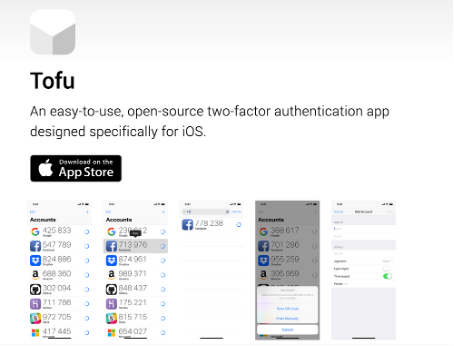
- Use the Download on the App Store button to download the app. Proceed with the installation in the standard mode provided by the macOS operating system (you need to have a valid account to access the App Store repository for the app download).
Note: during the procedure, a warning may appear because the app is not yet verified for macOS; however, you can continue and complete the operation without any issues. - After installing the app, launch it by double-clicking (the app is available in the Applications folder.
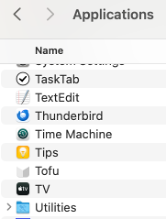
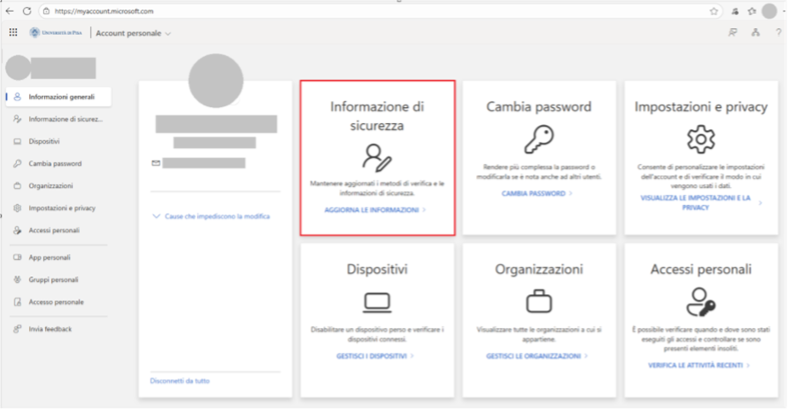
Before completing the installation of Tofu TOTP, it is necessary to carry out some preliminary operations on Office 365: - Access the Personal Account section of Office 365 at: https://myaccount.microsoft.com/ (if prompted, proceed with authentication using university credentials).
- In the Security Information pane (highlighted in red in the image), click on Update your information.
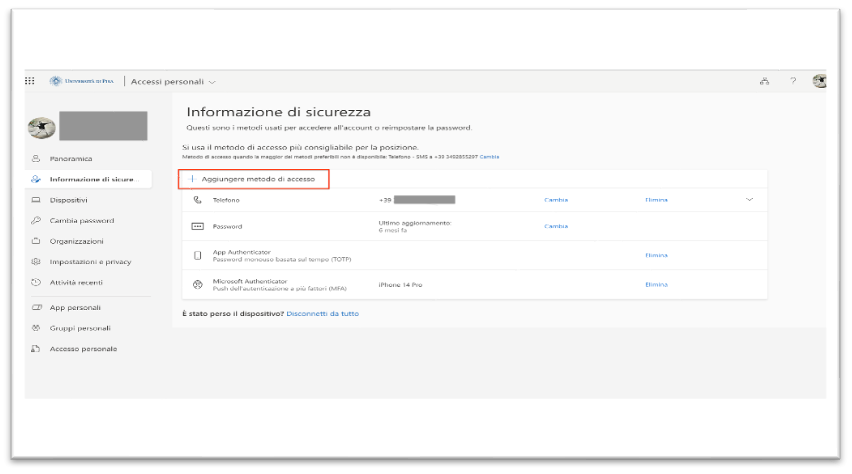
- Select + Add access method.
- Click on Next.
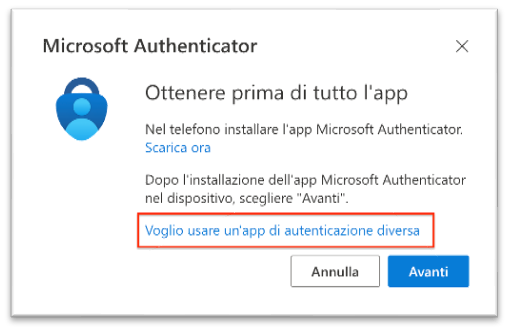
- Click on I want to use a different authentication app.
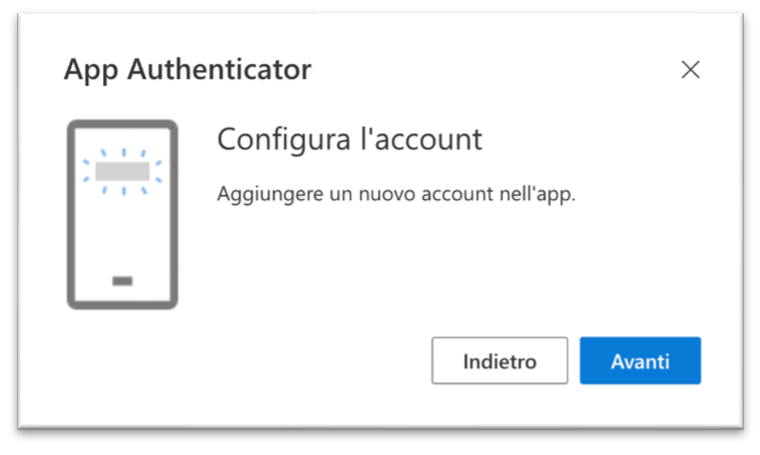
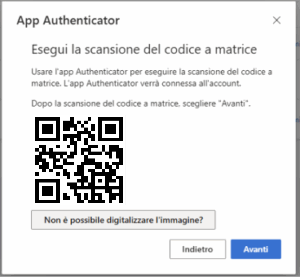
- In the Configure Account window, press Next and then click on Can’t scan the image?
- To link Office 365 and the authentication app, the strings related to Account name and Private key (on the screen, the strings are obscured by gray rectangles) must be entered into two specific fields of the Tofu app.
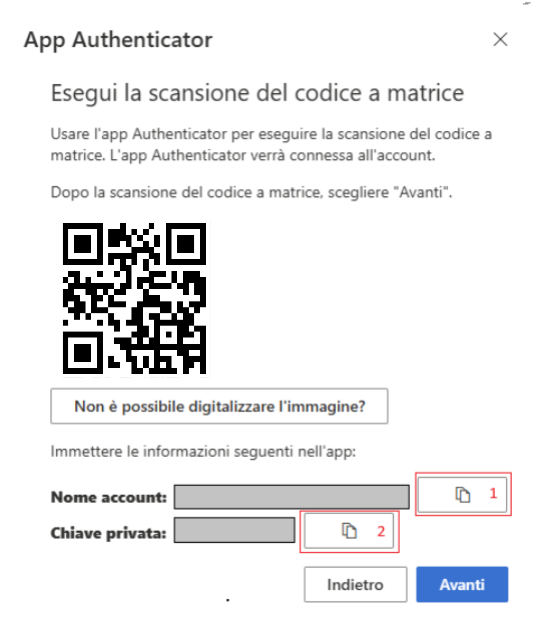
- Then open the Tofu app and follow in numerical order the workflow highlighted on the screen to establish the actual pairing between the TOTP app and the Microsoft 365 authentication system. In step 3 of the flow, the fields to fill in are name and secret (it is suggested to use the appropriate icons for copy and paste).
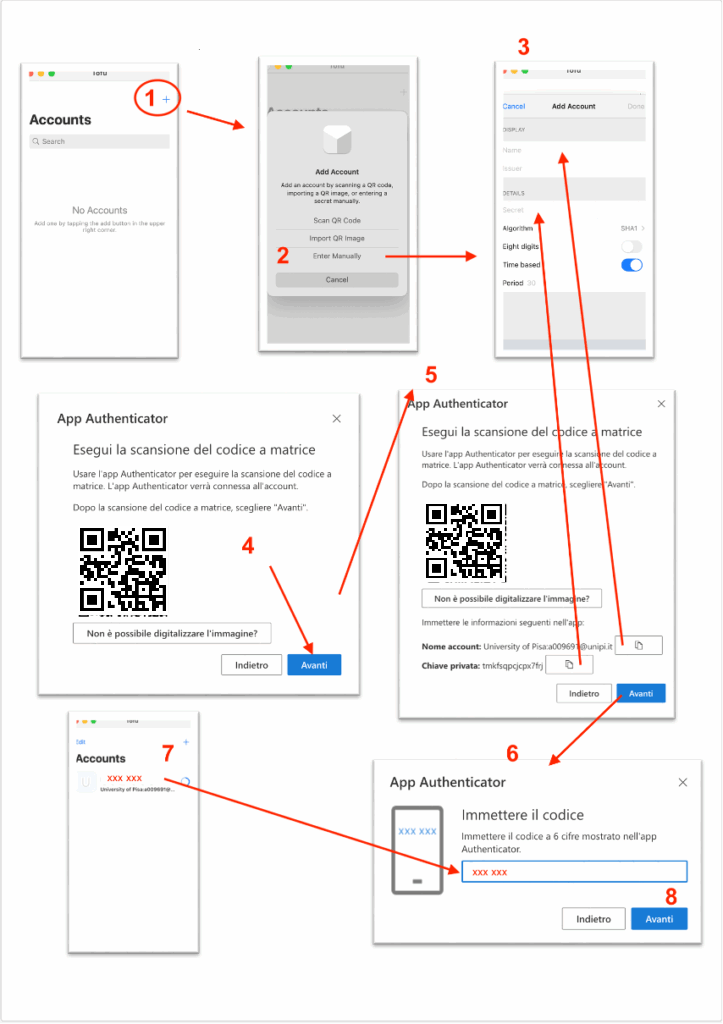
At the end of the procedure, the new authentication method will appear in the list in the Security Information window of your security profile on Microsoft 365.
Access Issues #
For any access issues or support in using two-factor authentication (2FA), you can contact the relevant IT support center.