
To avoid being locked out of your account in case of issues with the main two-factor authentication method (such as losing your smartphone or credentials), it is strongly recommended to immediately activate at least two different two-factor authentication methods, preferably on more than one device.
This way, even if the primary two-factor authentication method is unavailable, you can still securely access your account.
For example, in addition to the Microsoft Authenticator app, it is advisable to immediately activate
Use one or more of the following methods:
- Receiving codes via SMS on your smartphone.
- Authentication via office landline.
- Two-factor authentication app on PC or Mac.
The Microsoft Authenticator app allows you to generate temporary verification codes or approve access requests for the University of Pisa’s multi-factor authentication (MFA).
This is the recommended method for secure access to Microsoft 365 services because it ensures a high level of protection and can also be used in passwordless mode, without entering a password.
Installation and configuration #
The procedure describes how to install and configure the app on Android or iOS smartphones.
- Access the personal account section of Office 365 at https://myaccount.microsoft.com
- If prompted, proceed with authentication using university credentials
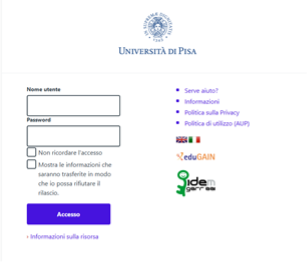
- In the Security information box (highlighted in red in the image), click on Update information
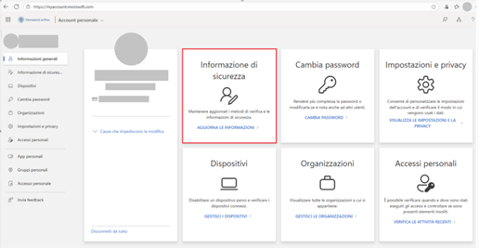
- Select + Add sign-in method
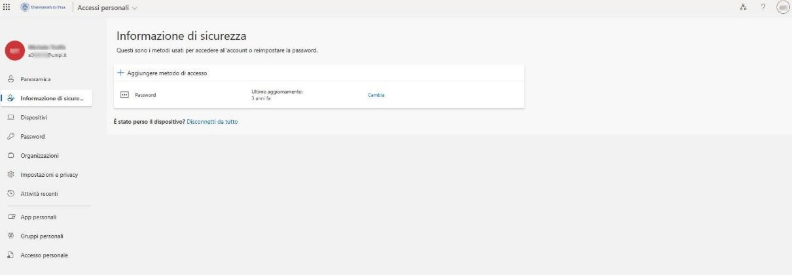
- Select Microsoft Authenticator
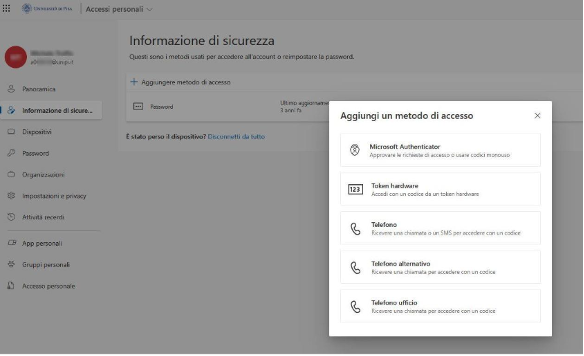
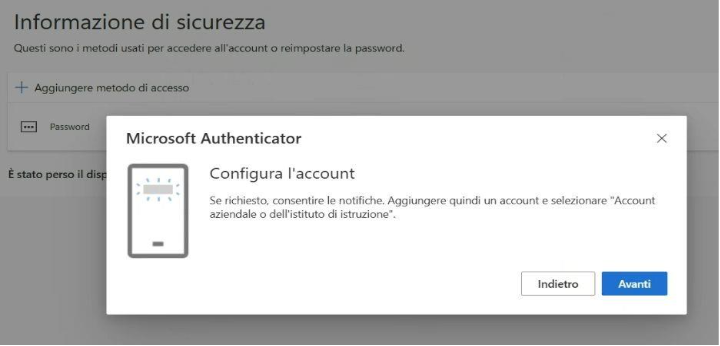
- Install the Microsoft Authenticator App on your mobile phone, select Work account on the mobile device, and press Next on the PC.
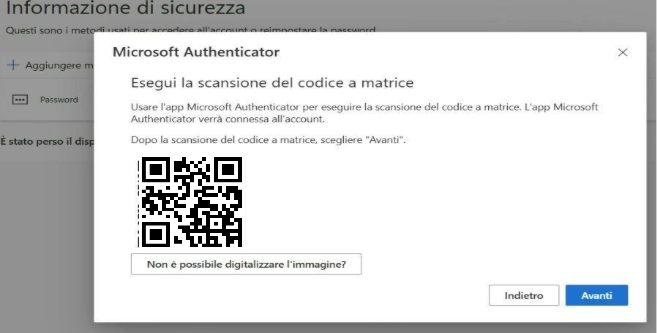
- Connect the smartphone by scanning, when prompted, the QR code displayed on the screen (the image below is just an example and does not contain the actual code)
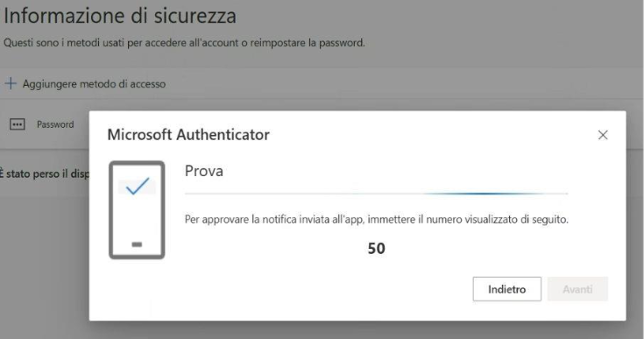
- When prompted, enter the code displayed on the screen on the smartphone (in the image, the number 50 is a sample code and does not represent the actual code)
- If the connection is successful, a notification message will appear approving the connection.
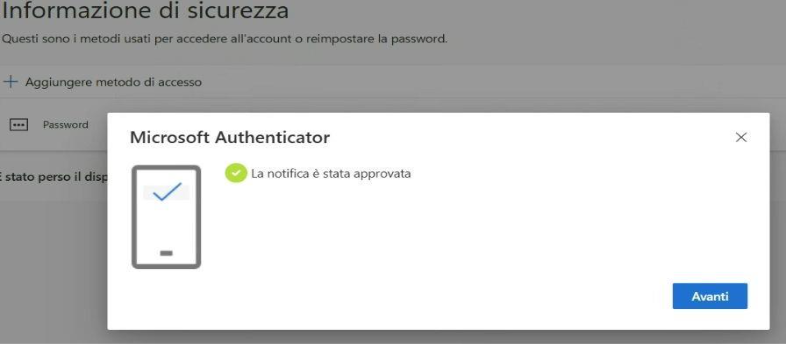
At this point, two-factor authentication is active.
Passwordless access to Microsoft 365 #
For users who use Microsoft Authenticator as a second authentication factor, it is possible to activate a simplified access mode to Microsoft 365 services and applications connected to the Microsoft Identity Provider (Microsoft Entra).
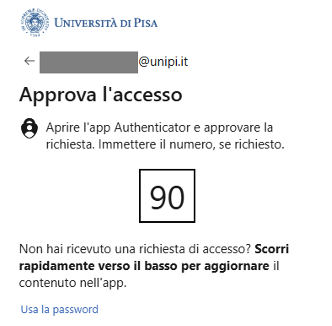
This mode, called passwordless access, allows you to confirm your identity directly through the Authenticator app by entering a two-digit verification code provided during login, without having to type the password.
Passwordless authentication eliminates the need to remember or manage complex passwords and ensures a higher level of security for accessing your account and personal data.
Prerequisite: before activating passwordless access, make sure you have configured the Microsoft Authenticator | Smartphone app.
- After opening the Microsoft Authenticator app on your smartphone, click on the account related to the University of Pisa activated during setup.
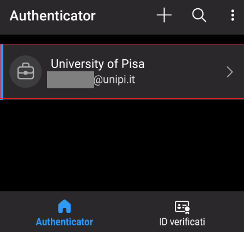
- Select the option Configure passwordless access request.
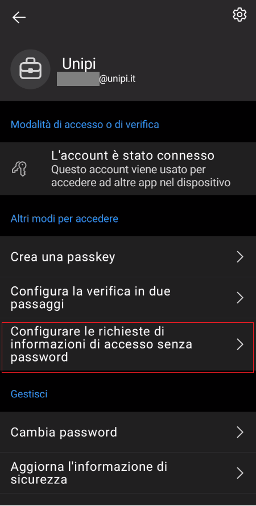
- Follow the instructions in the subsequent screens (providing, if requested, to authorize the access request in the previously defined ways). Once the procedure is complete, Microsoft Authenticator indicates the activation of passwordless access.
Accessing resources in passwordless mode #
Once passwordless mode is activated, to access the Microsoft 365 ecosystem (and all University of Pisa applications authenticated through the Microsoft IDP), the following steps must be followed:
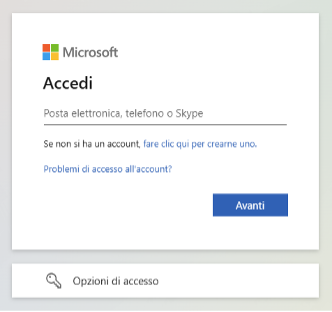
- Enter the username (nome.cognome@unipi.it or @studenti.unipi.it) in the authentication window and press next.
- It will therefore be sufficient to approve the access request from your smartphone by entering the number displayed on the screen in the Microsoft Authenticator app (without the need to enter any password).
Access Issues #
For any access issues or for support with using two-factor authentication (2FA), you can contact the relevant IT center.