
What is OpenRainbow and what is it for #
OpenRainbow by Alcatel is the service that replaces the traditional landline, allowing you to use your University number on computers and mobile devices.
The platform integrates audio and video calling features, instant messaging, virtual meetings, and file sharing.
Account Activation #
To activate the service:
- Access the site https://www.openrainbow.com
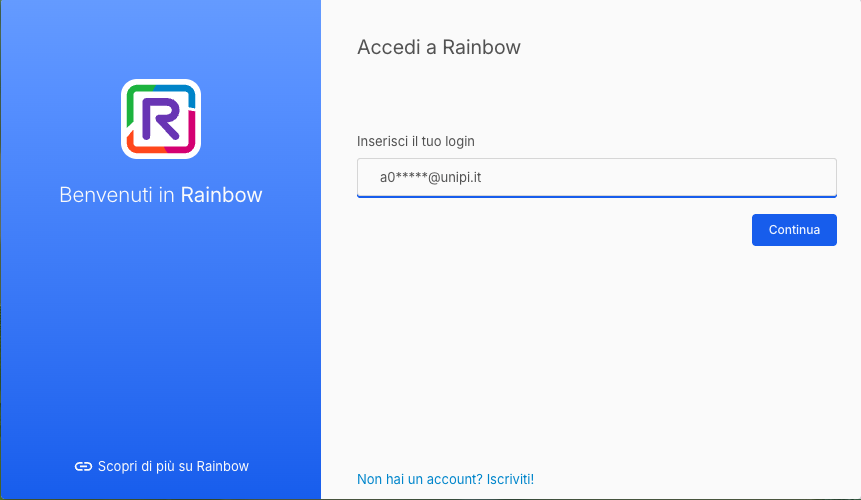
- Select the option Launch Rainbow, entering your institutional email address in the format
a0****@unipi.it.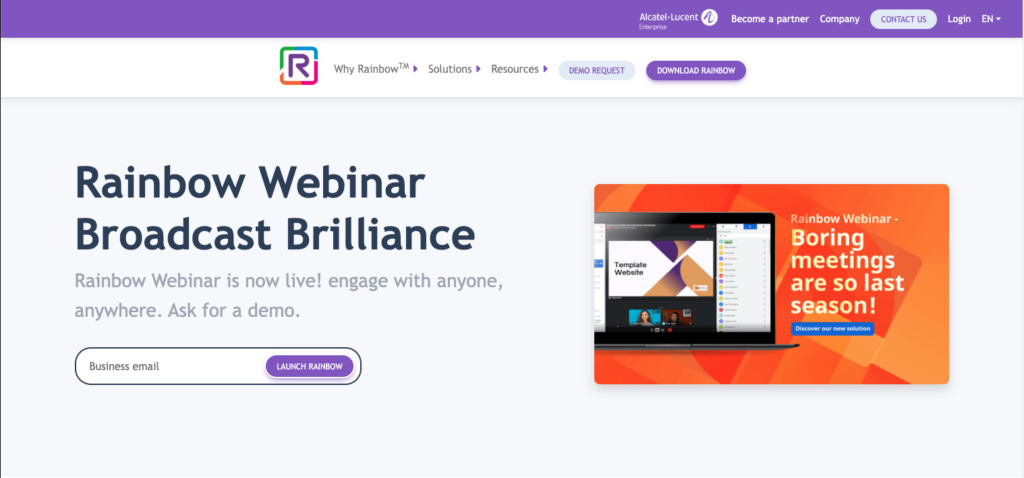
- You will be redirected to the authentication procedure.
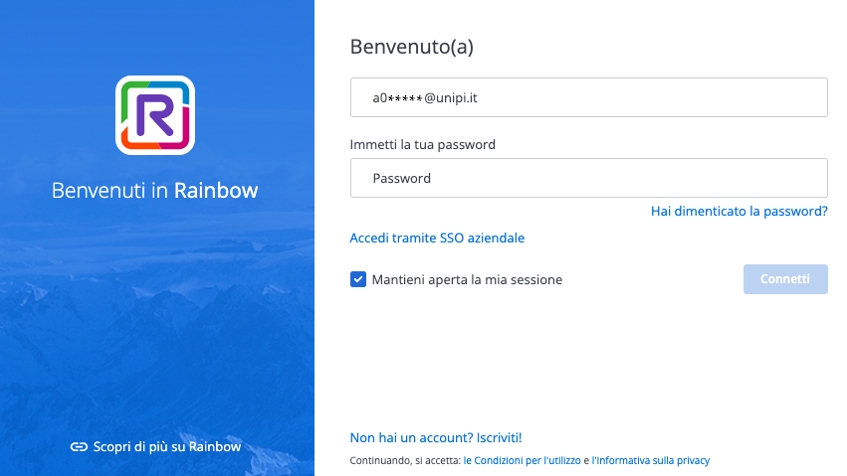
After the email address verification:
- Select Login via Corporate SSO.
- You will be redirected to the University of Pisa’s authentication portal, where you will enter your university credentials.
- If already authenticated, simply confirm the login.
Further information is available in the official documentation.
Profile Customization #
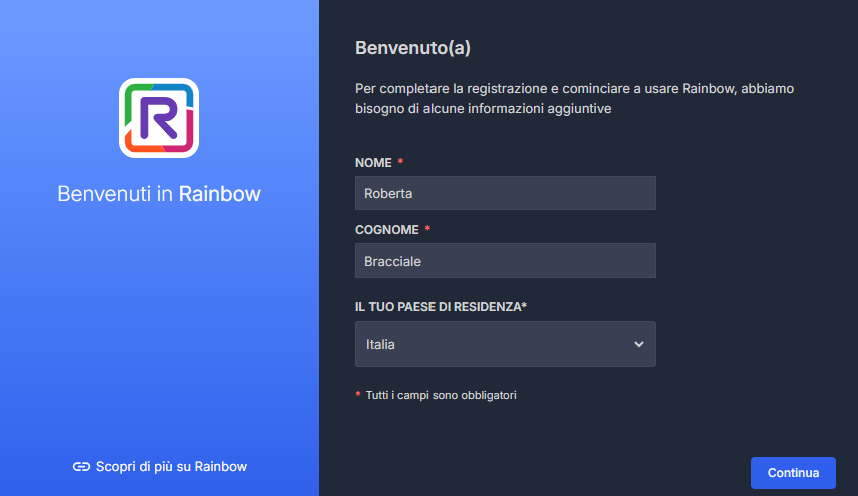
After verifying your account, complete your profile by entering the required information (first name and last name) and optionally adding a photo. Set your preferences regarding cookies, notifications, and permissions, if prompted.
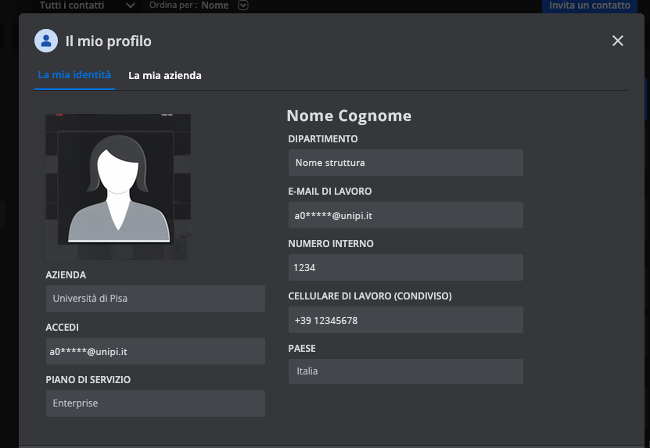
More information is available in the official documentation.
Application Installation #
Access to the service is possible via web browser or through the dedicated application for desktop and mobile devices.
Installation on Desktop (Windows and macOS) #
- Go to the official page for the OpenRainbow download.
- Select the version compatible with your operating system (Windows or macOS).
The system may automatically suggest the correct version based on the device used. - Run the downloaded file and follow the installation wizard.
- Launch OpenRainbow by logging in with your university credentials.
The firewall may block certain features of OpenRainbow.
If you experience issues, please check that the OpenRainbow service is allowed in the firewall settings.
Further information is available in the official documentation.
Installation on mobile devices (iOS and Android) #
- On iOS devices, open the App Store and search for Ale Rainbow.
- On Android devices, open the Google Play Store and search for Rainbow.
- Install the official application.

- Start the application.
- Follow the procedure by entering the institutional email address in the format
a0****@unipi.it.
More information is available in the official documentation for iOS devices and Android.
Main Features #
Calls and Video Calls #
- Audio calls
- Video calls
- Scheduled virtual meetings
Messaging #
- Send instant messages to contacts
- Create group chats
- Share documents and files
Screen Sharing #
- Presentations
- Collaboration on documents
- Remote support
Complete guides are available in the official documentation.
Rainbow Connector for Microsoft Teams #
What it is and what it’s for #
Rainbow Connector for Microsoft Teams allows the use of the institutional phone line directly within Microsoft Teams, enabling users to make and receive calls using their university number, while fully integrating with the Teams environment.
The service includes key telephony features (VoIP softphone, call transfer, conference, forwarding, voicemail, call history, and contact directory) and is integrated with Microsoft Outlook through an add-in to initiate calls from emails or contacts.
It also provides presence status synchronization: during a call or a meeting on Teams, the status is automatically updated on Rainbow (for example, “Busy” or “Do Not Disturb”).
How to enable it #
To use Rainbow Connector, it is necessary to install the app in Microsoft Teams and verify the integration with Microsoft 365 within Rainbow.
Installing the app in Microsoft Teams #
Within Microsoft Teams:
- Access the App section in the sidebar.
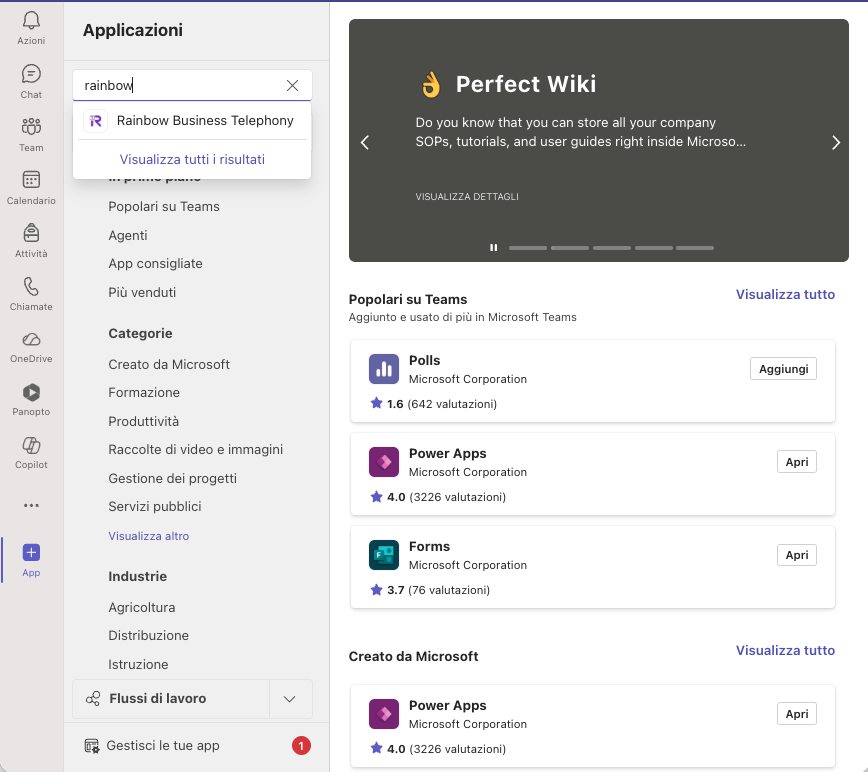
- Search for Rainbow Business Telephony and select the official app.
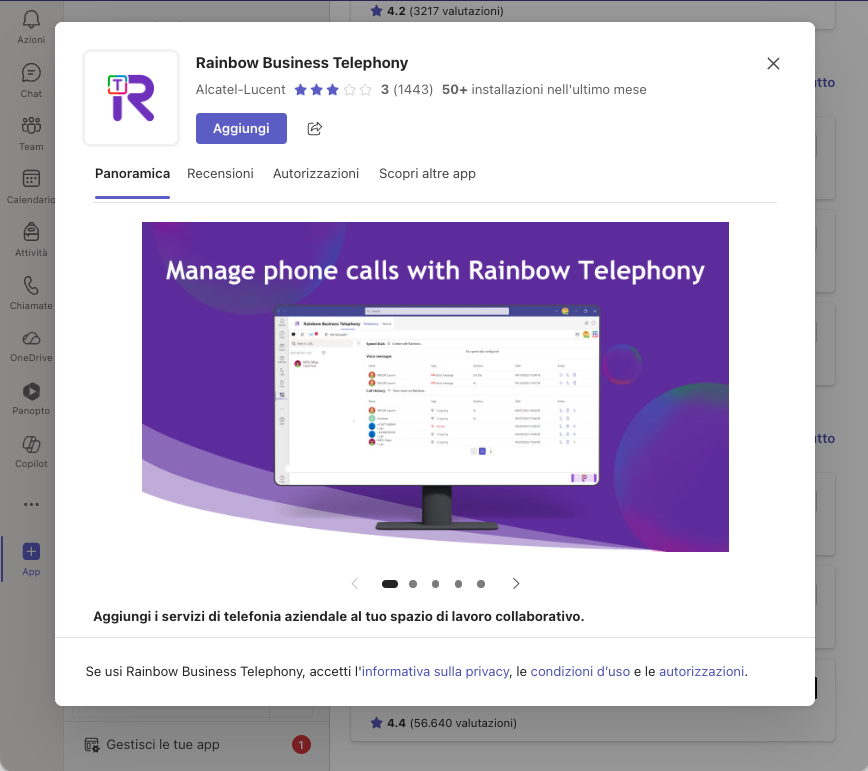
- Click on Add.
- Follow the setup wizard and authenticate with your university credentials.
- Once completed, the app will be available among your personal applications in Microsoft Teams.
- To keep the app always highlighted in the Teams sidebar, click on the three dots
...in the sidebar, find Rainbow Business Telephony, then select Add to pin it to the menu.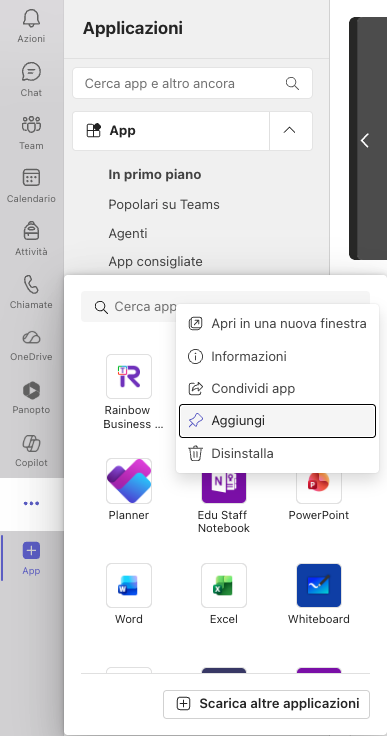
Presence Status Synchronization on Rainbow #
To enable presence and calendar synchronization:
- Access the Rainbow application.
- Open Settings.
- Select the option Calendar Attendance.
- Check that the integration with Microsoft Office 365 is active.
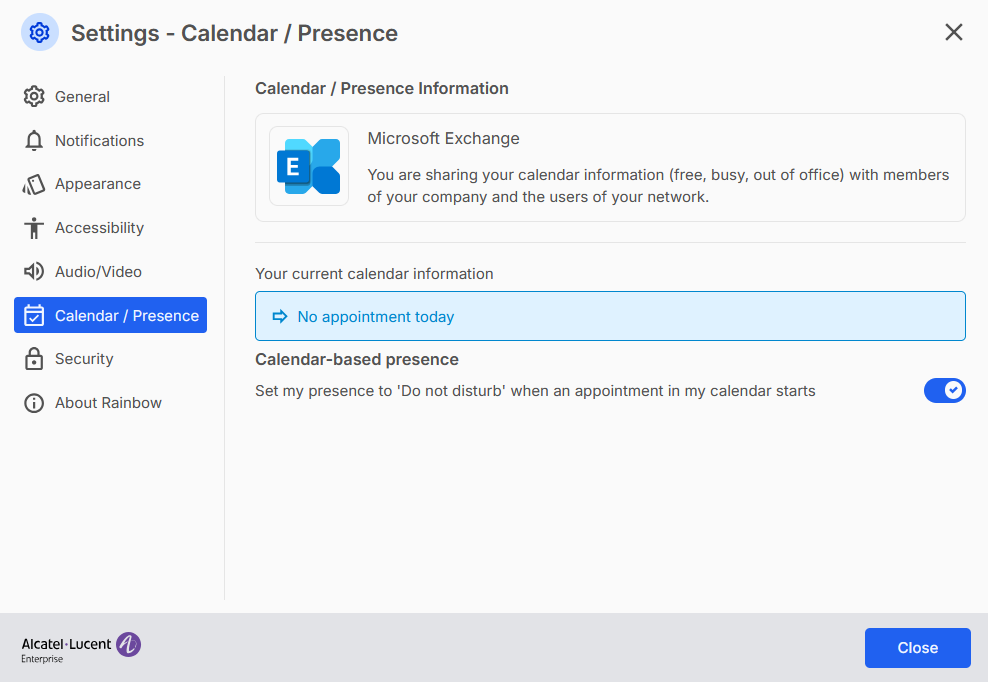
- If prompted, authorize access to the Microsoft 365 calendar.
More information is available in the official documentation.
Frequently Asked Questions #
I am not receiving the confirmation email #
- Check the spam or junk folder.
- Ensure that you have correctly entered your institutional email address in the format
a0****@unipi.it.
I can’t make calls #
- Check that the microphone and camera are enabled in the device settings.
- Check the Internet connection.
- Ensure that the firewall is not blocking the service.
The application freezes or does not open #
- Restart the device.
- Uninstall and reinstall the application.
How to avoid receiving calls? #
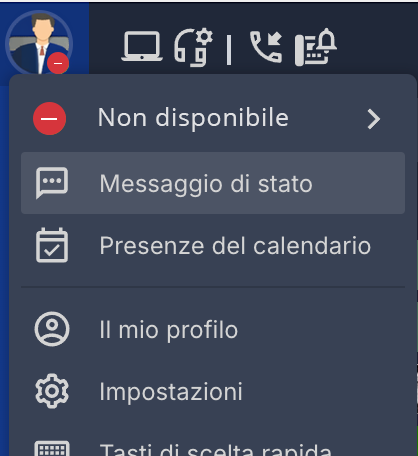
To avoid receiving calls, set your status to Do Not Disturb within the application. This way, incoming calls will not be forwarded to the device.
For the caller, the line will appear busy. Received calls will still be visible in the call log, so you can return the call later if needed.
In case of difficulty or persistent problems, please contact IT Help | Telephony.