
The second factor of authentication can also be received via SMS, automatically sent to the mobile number associated with your Microsoft 365 account.
This method allows you to complete the login by entering the numeric code received via message and is particularly useful as a backup method in case of issues with the primary authentication app.
Setup #
The following procedure explains how to enable SMS authentication and associate it with your personal phone number.
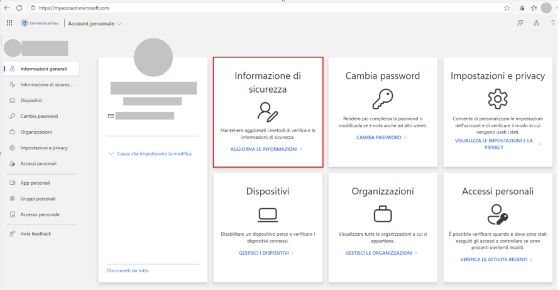
- Access the Personal Account section of Office 365 at the following address: https://myaccount.microsoft.com/ (if prompted, proceed with the standard authentication).
- In the Security Information panel (highlighted in red in the image), click on Update information.
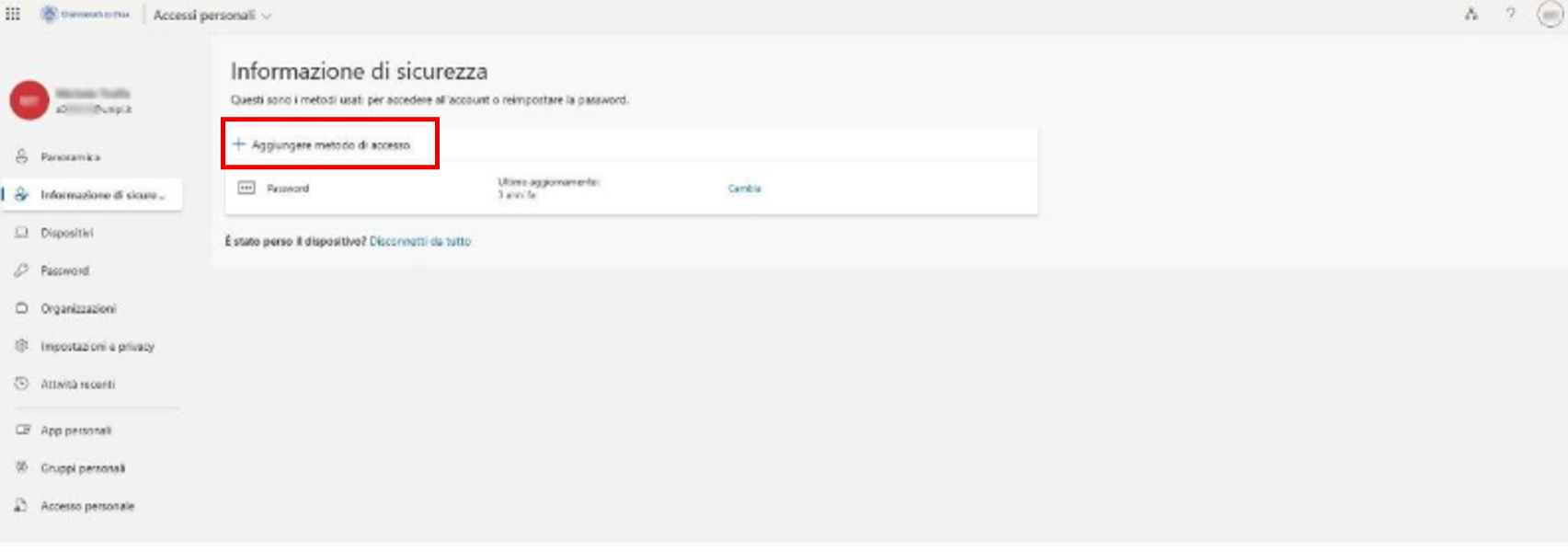
- Click on + Add sign-in method.
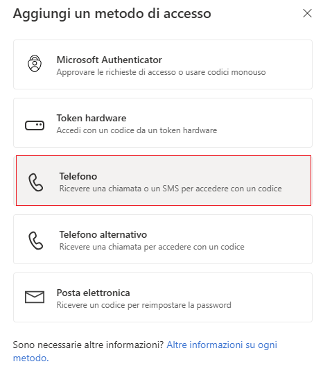
- Select the Phone option.
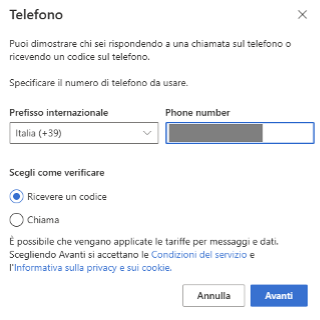
- Enter the Italian country code (+39) and in the Phone number field, the number of your smartphone. Click on Receive a code (or keep the selection if the option is already highlighted). Then click on Next.
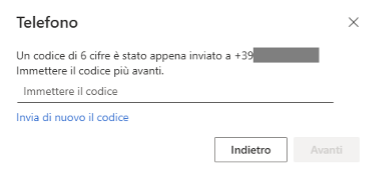
- To complete the procedure, Microsoft will send an SMS to the mobile number indicated in step 5, and you will need to enter the code found in the SMS in the designated Enter the code field.
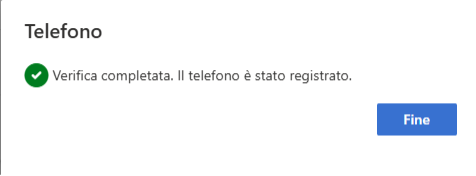
- Following the verification of the phone number, the new authentication method will appear among the available authentication methods for your account.
Access Issues #
For any access issues or support with two-factor authentication (2FA), you can contact the relevant IT help desk.