
Email Programs with Native Exchange Support #
Outlook #
- Enter your email address

- The application will verify and configure the account.

- Finally, the authentication page will be displayed, where you will need to enter your university credentials.
Outlook [older versions] #
- Open Outlook Settings.
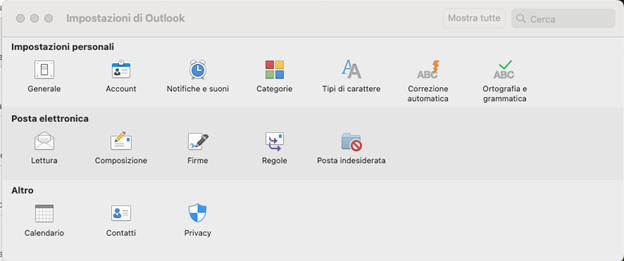
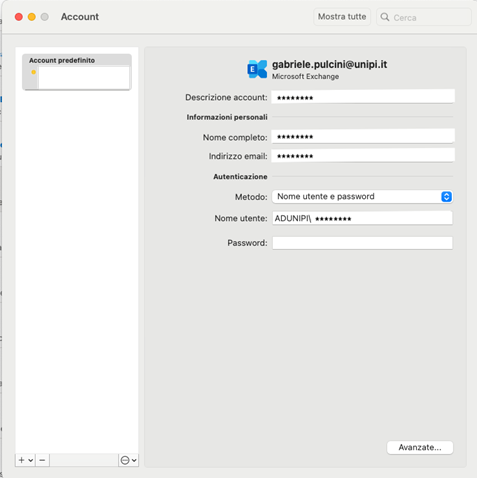
- Select the Account option and click the + button to add a new account.
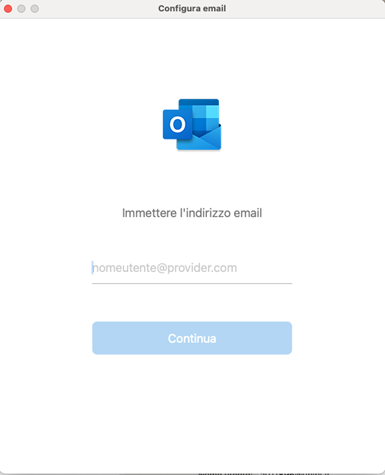
- Enter the credentials in the format a012345@unipi.it and click on Continue.
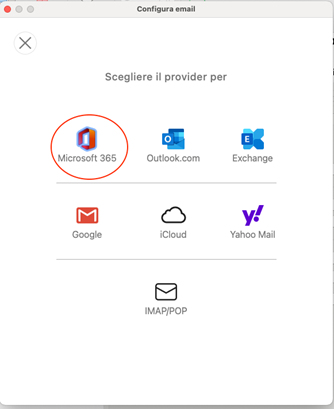
- If the configuration is not recognized automatically: on the next screen, select “Is this not an Exchange account?” and choose Microsoft 365.
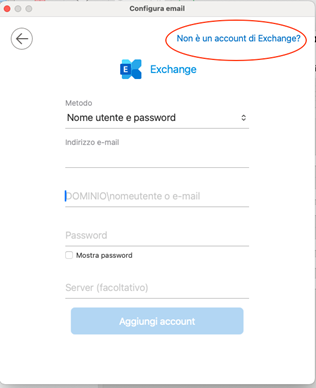
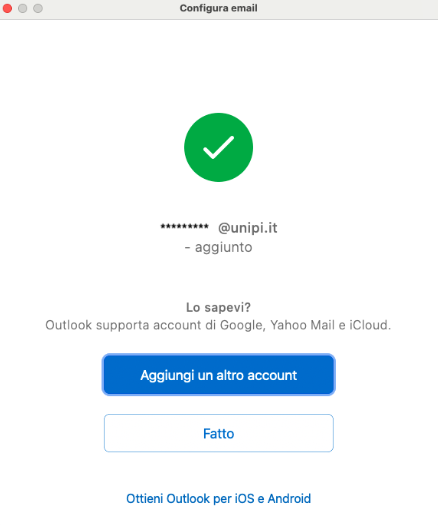
- Re-enter the email address a012345@unipi.it and complete the account addition.
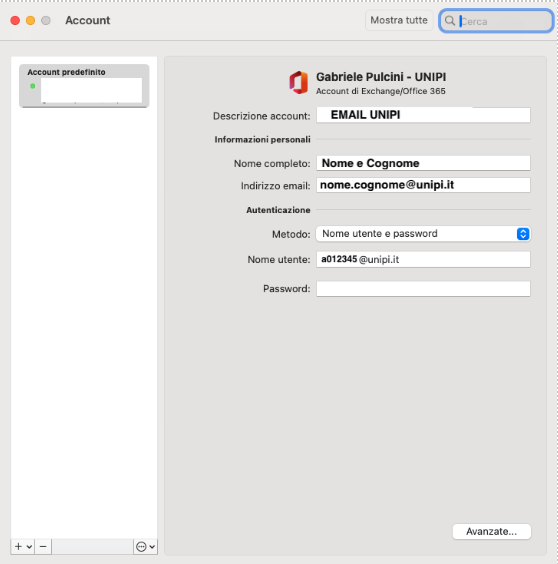
- Once added, you can configure the newly created account.
Removing an Account #
To remove an old account, select it and click on the – button at the bottom left.
Thunderbird | IMAP and SMTP Configuration Parameters #
Email programs that do not support native mode, such as Thunderbird (for both Windows and macOS), need to be configured manually. It is recommended not to modify an existing profile, but to create a new one, deleting or, if necessary, renaming the previous one.
- From “Add account”, enter first name, last name, and email address, then select “Configure manually” and proceed with the setup.

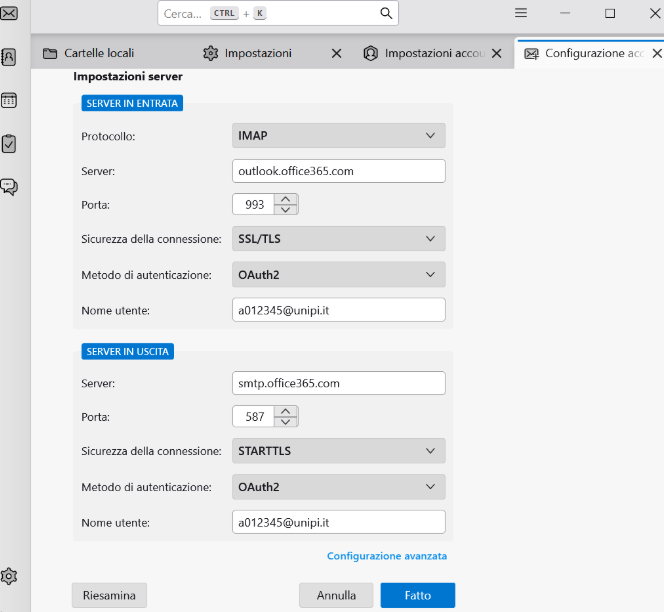
- Configuration parameters:
- Incoming mail server (IMAP)
- Host name:
outlook.office365.com - Port:
993 - Security:
SSL/TLS - Authentication:
OAuth2
- Host name:
- Outgoing mail server (SMTP)
- Host name:
smtp.office365.com - Port:
587 - Security:
STARTTLS - Authentication:
OAuth2
- Host name:
- Username (for both IMAP and SMTP): your user ID, for example: a012345@unipi.it.
- Incoming mail server (IMAP)
- Select the “Done” button. The page to enter the university credentials will open.
Latest Versions #
The latest versions of Thunderbird offer an automatic configuration that, at the moment, does not work properly.
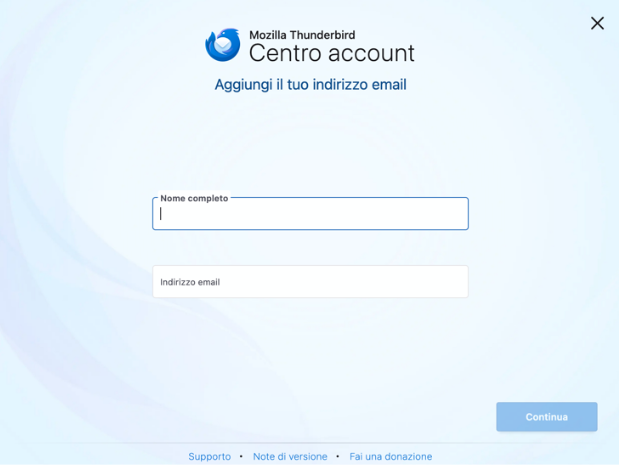
To return to manual configuration, open Thunderbird settings, go to the General section, and in the part dedicated to the experimental “Account Center,” deactivate the option Create account in the new Account Center.

Apple Mail #
- From the Mail menu, select “Add Account” and, in the next window, select “Microsoft Exchange”.
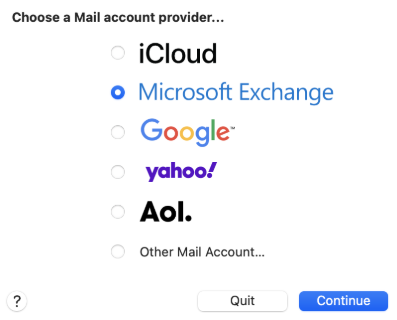
- Enter first name, last name, and email address.
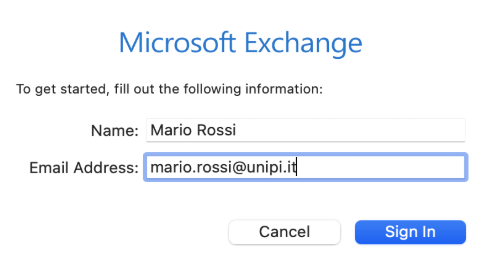

- Once you select “Log In”, the page for entering your University credentials will be displayed.
Gmail for Android #
Add an account of type “Exchange and Office 365”. If automatic configuration does not work, proceed with manual setup using the native Exchange parameters and selecting the option to accept all SSL/TLS certificates.
Email Sending Limits #
Sending to internal recipients
Maximum 500 recipients/hour
Sending to external recipients
Maximum 500 recipients/hour
Daily overall limit
Maximum 1000 recipients/day
Exceeding limits
If thresholds are exceeded, the user is temporarily prohibited from sending emails.
Unlocking can only be done by service administrators; therefore, it is necessary to contact your reference Office, which will request the unlock.