
To avoid being locked out of your account in case of problems with the main two-factor authentication method (such as losing your smartphone or credentials), it is highly recommended to immediately activate at least two different two-factor authentication methods, possibly on more than one device.
In this way, even if the main two-factor authentication method is not available, you will still be able to access your account securely.
For example, in addition to the Microsoft Authenticator app, it is advisable to activate immediately…
use one or more of the following methods:
- Receiving codes via SMS on the smartphone.
- Authentication via office landline phone.
- Two-factor authentication app on PC or Mac.
The Google Authenticator app allows you to generate temporary verification codes (TOTP – Time-based One-Time Password) that can be used as a second factor for secure access to the Microsoft 365 services of the University of Pisa.
It can be used as an alternative to Microsoft Authenticator, even without an internet connection, to ensure access via multi-factor authentication (MFA).
Installation and configuration #
The following procedure describes how to install and configure the app on Android or iOS smartphones.
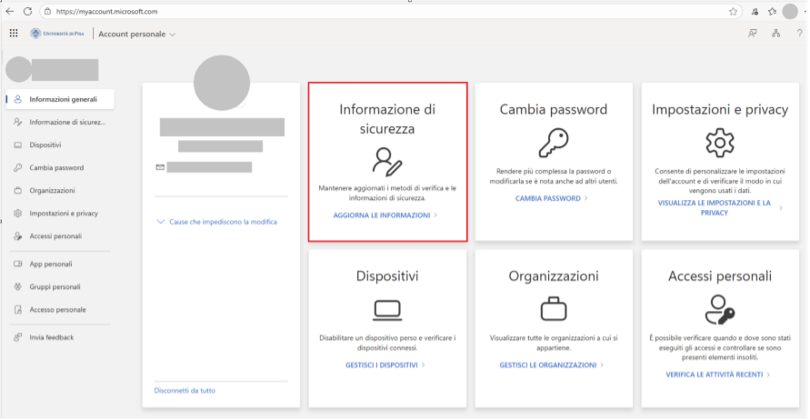
- Log into the personal Office 365 account section at: https://myaccount.microsoft.com/ (if prompted, proceed with canonical authentication).
- In the Security Information panel (highlighted in red in the image), click on Update information
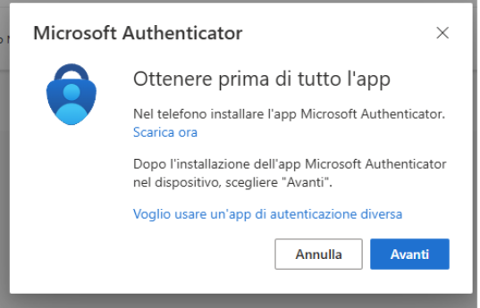
- Choose + Add sign-in method. Select Microsoft Authenticator and then click on the link I want to use a different authentication app.
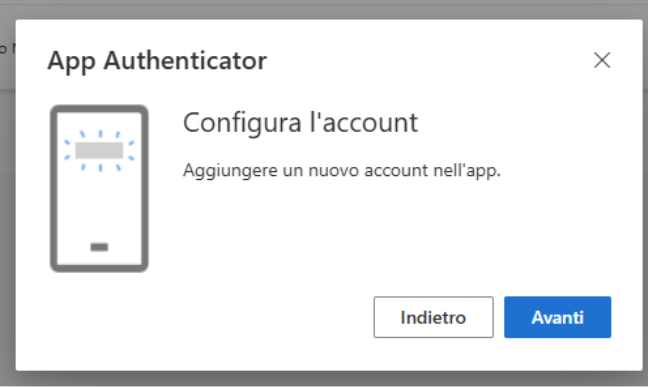
- In the Set up your account window, press Next.
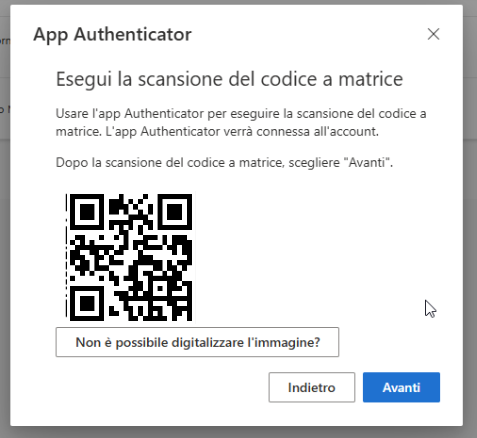
- Install the Google Authenticator app on your smartphone and link your smartphone by scanning the QR Code displayed on the screen when prompted.
- Switch to the app on your smartphone.
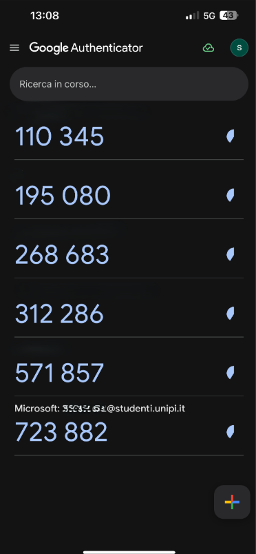
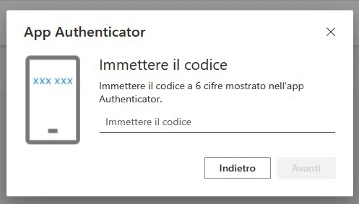
- Note the six-digit code and, when prompted, switch to your PC and enter the code in the Enter code window (723882 is an example code and does not represent the actual code).
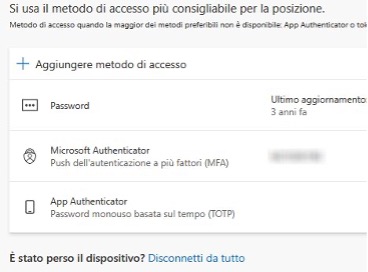
- If the connection is successful, the entry Authenticator App – time-based one-time password will appear on the screen in the list of access methods.
- Once you have entered your login and password, select the option I can’t use the Microsoft Authenticator app right now.
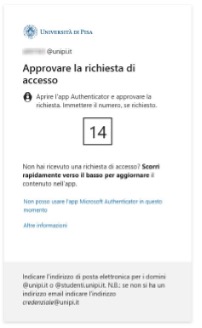
- Select the option Use a verification code.
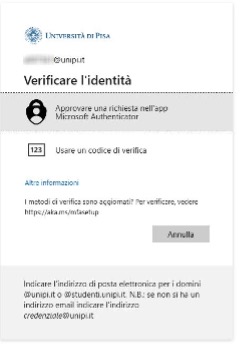
- From the Google Authenticator app, copy the code related to our Unipi account and enter it in the respective window.
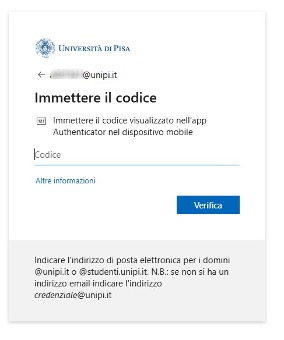
If the setup was successful, we will have logged in using Google two-factor authentication.
Access issues #
For any access issues or for support in using two-factor authentication (2FA), you can contact the relevant IT help desk.