
The Authenticator (TOTP) application allows you to generate temporary verification codes for multi-factor authentication (MFA) to the Microsoft 365 services of the University of Pisa.
It is a solution compatible with Linux systems (e.g., Ubuntu) and serves as an alternative to mobile apps (Microsoft Authenticator or Google Authenticator), useful for secure access from desktop workstations as well.
Installation and configuration #
To download the Authenticator (TOTP) application, visit the flathub.org website and type Authenticator in the search bar at the top.
Select the version that corresponds to your Linux distribution.
In the case of Ubuntu, you can follow the instructions provided below.
For other distributions, the procedure is generally similar but may require minor adjustments based on the system used.
You can also download and install the app directly through the Ubuntu Software application, available in the operating system.
- From the Ubuntu desktop, select (if present) the Ubuntu Software icon in the left bar, or search for it in the apps using the button located at the bottom left (if you are using the default GNOME interface, otherwise use the application search button specific to your graphical interface).
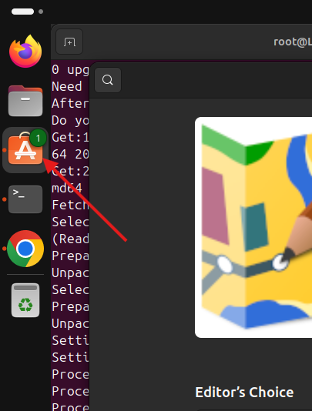
- In the Ubuntu Software window, search for the software Authenticator by typing its name in the top bar.
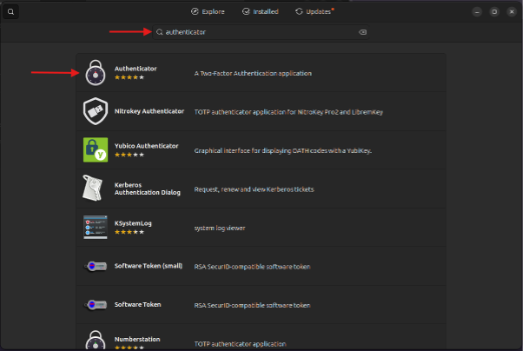
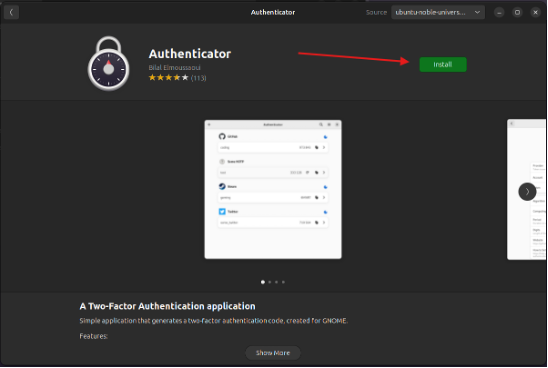
- Click on the Authenticator app and in the page that opens, press the Install button.
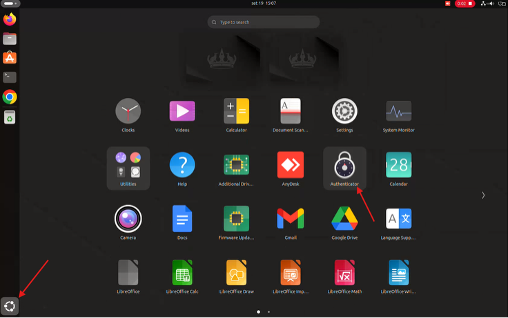
- After the installation is complete, open the Authenticator app using the system application menu (for example, via the button at the bottom left or the list of installed apps, depending on the graphical interface in use).
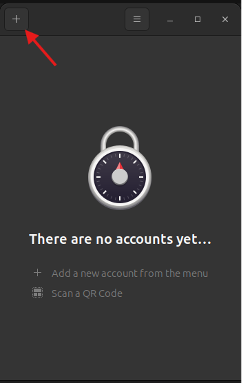
- Open the app and click on + in the top left to add a new account
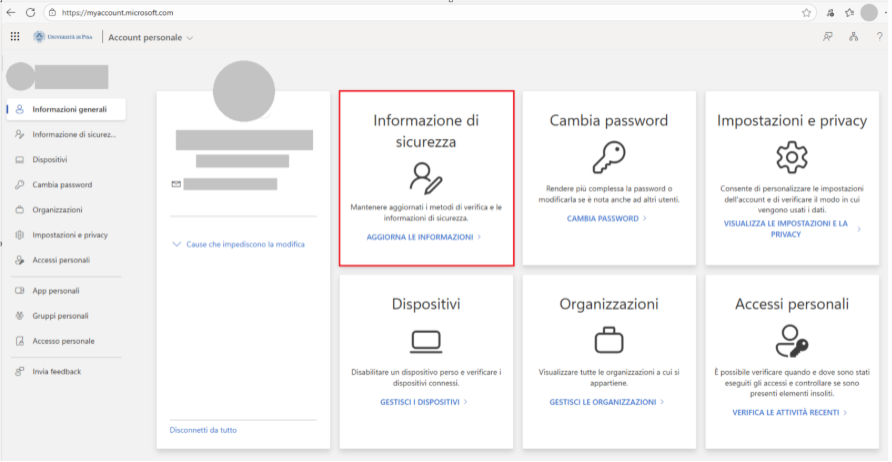
Before proceeding with the configuration of Authenticator, some preliminary operations need to be performed on our Microsoft 365 account: - Access the “personal account” section of Office 365 at the following address: https://myaccount.microsoft.com/ (if prompted, proceed with authentication using university credentials).
- In the Security information panel (highlighted in red in the image), click on Update information.
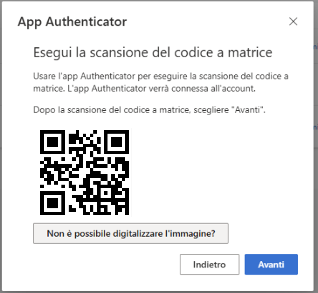
- Click on + Add sign-in method, then select Microsoft Authenticator. Then click on the link I want to use a different authentication app.
- In the Set up your account window, press Next and then click on Can’t scan the image?
- To link Office 365 with Authenticator, it is necessary to enter the strings for Account Name and Private Key provided in the window (the strings are obscured by gray rectangles) into two specific fields in the Authenticator app.
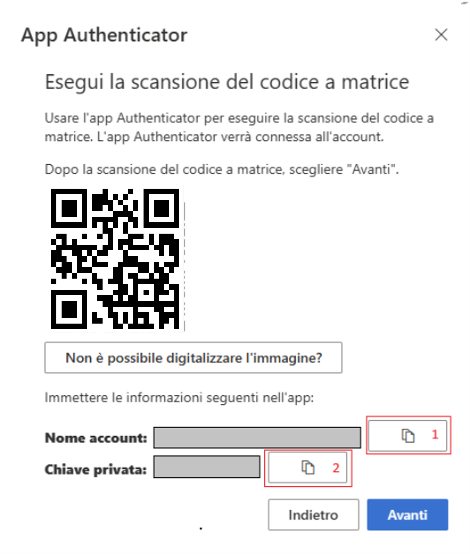
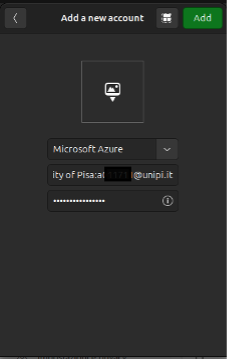
- Returning to the Authenticator app, select Microsoft Azure as the provider, copy the Account Name string into the Label field and the Private Key string into the Secret Key field, then click Create an account. To avoid errors, it is suggested to copy the Account Name and Private Key strings using the corresponding copy icons highlighted in the image at point 10 with numbers 1 and 2 in red. At this point, the new account/link just created will be available in the Authenticator app.
- To complete the procedure on Office365, it is finally necessary to press the Next button and, in the window that appears subsequently, input the six-digit code displayed in the Authenticator app (the code refreshes every 30 seconds). By pressing Next again, the two-factor authentication activation procedure is completed.
The Authenticator software is also available for other Linux distributions.
The setup procedures are practically identical, with minimal differences limited to the installation phase.
Specific instructions for each distribution can be found on flathub.org, by searching for Authenticator and selecting the version corresponding to your operating system.
Access Issues #
For any access issues or support with using two-factor authentication (2FA), you can contact the relevant IT support center.